Find calls
List your recorded calls and filter them by who you spoke to, the number, a tag, a date range, or internal and external calls.
Olatti is a UK business phone with its own MCP server. Connect it to Claude or ChatGPT and you can ask about your calls, read call transcripts and AI call summaries, look up contacts, catch up on messages and place calls, all from the chat.
It's built for UK small businesses, with UK numbers and call recording on every plan. Transcripts and summaries come with Plus and Unlimited, and voice, transcription and summarisation run on our own infrastructure, in our own UK data centres. Plans start at £5 per user a month billed annually, or £6 monthly, ex VAT.
MCP (Model Context Protocol) is an open standard that lets an AI assistant use the tools of another app. Olatti's MCP server gives Claude and ChatGPT tools for your calls and transcripts, your contacts and your messages.
Olatti is listed in Claude's Connectors Directory, and you can add it to ChatGPT as an app with the same server URL.
The assistant is signed in as you. It reads what you can read in Olatti, and it only places a call or sends a message when you ask it to.
Five things, all on your own account.
List your recorded calls and filter them by who you spoke to, the number, a tag, a date range, or internal and external calls.
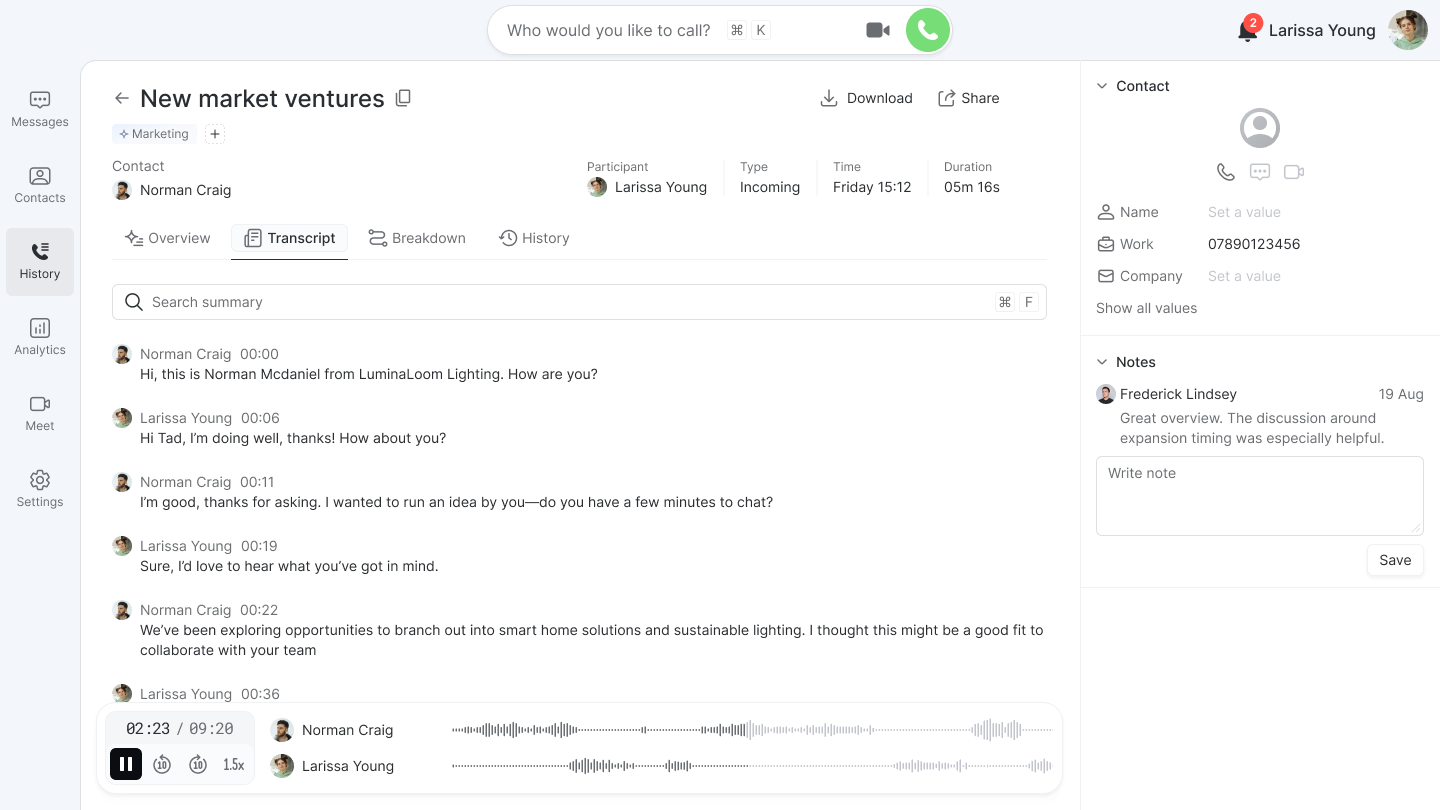
Open a call's AI summary and full transcript, then ask about what was said. Transcripts and summaries come with Plus and Unlimited.
Search your contacts by name, company or number, and see who you've spoken to most recently.
Read your direct messages and channels, and send a message as you to a colleague or an existing chat. The assistant shows you the wording first, sends only once you approve it, and starts a direct chat if you haven't got one.
Ask it to call someone and it rings one of your own devices, then connects you when you answer. It dials UK landlines, mobiles, freephone numbers and extensions.
You sign in with your Olatti account, not your Claude or ChatGPT login.
If Olatti doesn't show up, add it by hand: on the same Connectors screen, click Add, choose Custom connector and paste the server URL, https://mcp.olatti.com/mcp.
On a Claude Team or Enterprise plan, an owner or admin adds Olatti first, under Organisation settings, then Connectors, either from the directory or as a custom connector. After that, each person connects their own Olatti account.
You need a ChatGPT Plus, Pro or Team plan.
The full steps, with troubleshooting, are in our help article Connect Olatti to Claude and ChatGPT.
The names are made up. Use your own.
The connector works on every Olatti plan. Transcripts and AI call summaries need Plus, at £20, or Unlimited, at £25, per user a month ex VAT. On Metered the assistant sees the call but not the words.
Every account starts with a 7-day free trial, and you don't need a card. Compare plans or start for free.
The assistant is signed in as you, so it sees only what you can see in Olatti: your calls, your conversations and your account's contacts. It can't see a colleague's calls or messages.
You sign in through Olatti's own login and approve the connection yourself. If you don't use it for a week, the connection lapses and you sign in again.
What the assistant reads is handled by your AI provider, Anthropic for Claude or OpenAI for ChatGPT, under its own terms. Olatti's voice, transcription and summarisation run on our own infrastructure, in our own UK data centres, and connecting an assistant doesn't change that.
Olatti connects to Claude and ChatGPT today. Support for other assistants is coming.
Olatti does. It's a UK business phone with its own MCP server, at https://mcp.olatti.com/mcp, and it's listed in Claude's Connectors Directory. Once connected, Claude can find your recorded calls, read their transcripts and AI call summaries, search your contacts, read and send messages, and place calls.
Olatti does all four: call recording on every plan, transcripts and AI call summaries on Plus and Unlimited, and an MCP server that connects to Claude and ChatGPT. It comes with UK numbers, and voice, transcription and summarisation run on our own infrastructure, in our own UK data centres. Whether it's the right fit for your team is easiest to judge in the 7-day free trial, no card needed.
Connect Olatti to your assistant, then ask about a call. On Plus and Unlimited, recorded calls get a transcript and summary shortly after they end, and Claude or ChatGPT can open them when you name the person, number, date or tag.
Yes, Olatti. On ChatGPT Plus, Pro or Team, you add it as an app in Developer mode with Olatti's server URL, sign in to Olatti and click Approve. ChatGPT can then use your calls, transcripts, contacts and messages.
If your business phone is Olatti, open Olatti's listing in Claude, click Connect to Claude, sign in to Olatti and click Approve. Inside Claude, you'll also find it under Settings, then Customize, then Connectors, on the Discover tab. On Claude Team or Enterprise, an owner or admin adds Olatti for the organisation first.
Not directly. It finds calls by name, number, date and tag, then opens that call's transcript, so give it a person or a date range and ask what was said.
No. In Claude it's a directory listing and a sign-in. In ChatGPT you turn on Developer mode and paste one URL, and our help article walks through both.
Yes. Olatti is built by We UC Ltd, a bootstrapped UK team at Ariadne House, Town Quay, Southampton. It serves UK businesses only.